
IT Fundamentals – CompTIA A+ Primer 5 Sections66 Lessons25 QuizzesLifetime
Lesson 1.1: The Parts of a PC
This lesson introduces the principal hardware components found inside a personal computer, explains the role each one plays, and develops the vocabulary technicians use when they describe, compare, and upgrade machines. The content follows Domain 3 (Hardware) of the CompTIA A+ Core 1 examination objectives, exam code 220-1201.
Learning objectives
On successful completion of this lesson, you will be able to:
- Identify the major components inside a system unit and state the function of each.
- Distinguish volatile memory from persistent storage and explain why the distinction matters to everyday users.
- Compare mechanical hard drives, SATA solid state drives, and NVMe solid state drives on speed, durability, and cost.
- Interpret a basic specification sheet and relate each line to a physical component.
- Recommend the upgrades that most often restore acceptable performance in an aging computer.
1. The system unit
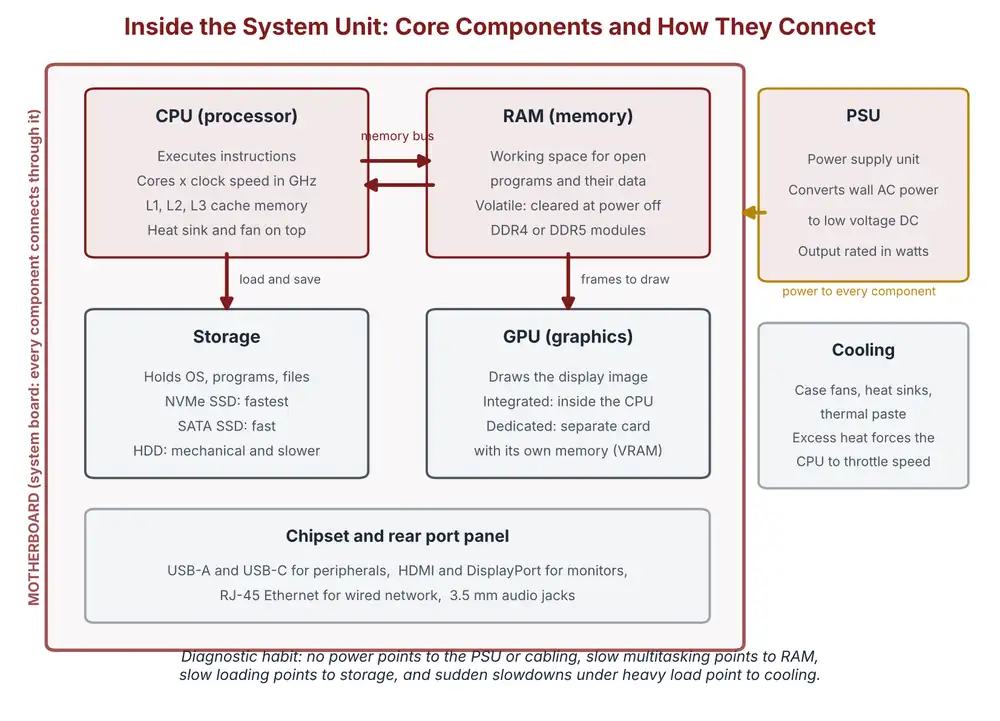
Open any desktop computer and the same cast of components appears, whatever the brand. The central processing unit (CPU) executes program instructions. Modern CPUs contain several cores, each able to work on a separate task, and run at clock speeds measured in gigahertz. The CPU generates significant heat, which is why it sits under a heatsink and fan, or in larger builds under a liquid cooling loop. When a processor overheats it protects itself by slowing down, a behaviour called thermal throttling, which users experience as a fast machine that mysteriously becomes slow under load.
Random access memory (RAM) is the computer’s working space. Every open application, browser tab, and unsaved document occupies RAM while it is in use. RAM is fast and it is volatile: when power is lost, its contents are gone. Storage is the opposite trade. A hard disk drive (HDD) or solid state drive (SSD) is slower than RAM but keeps its contents permanently, which is where the operating system, applications, and your files live between sessions.
The motherboard is the circuit board that connects everything: the CPU socket, the RAM slots, storage connectors, and expansion slots. The power supply unit (PSU) converts wall current into the low direct current voltages components need. A graphics processing unit (GPU) renders images to the display; it may be a dedicated card for gaming, design, and engineering work, or a modest processor built into the CPU for office tasks. Laptops contain the same functional parts in miniaturized, often soldered form, which is why laptop upgrades are limited compared with desktops.
2. Memory and storage are different things
New technicians, and most clients, confuse memory and storage because both are quoted in gigabytes. Keep the distinction firm. RAM is workspace: more of it lets the computer hold more open work at once, and when it runs out Windows begins swapping to the much slower drive, which users describe as the whole machine freezing when many browser tabs are open. Storage is the filing cabinet: running low on it produces full-disk warnings and failed updates rather than general slowness. A machine with 8 GB of RAM suits light office use; 16 GB is the comfortable standard for multitasking in current business fleets.
3. Storage technologies compared
A mechanical hard disk drive stores data on spinning magnetic platters read by a moving arm. It offers the lowest cost per terabyte, and it is fragile in motion and slow to respond, since the arm must physically travel to the data. A SATA solid state drive stores data in flash memory with no moving parts, cutting boot times from minutes to seconds. An NVMe solid state drive uses the same flash memory but connects directly to the motherboard through the PCI Express bus, bypassing the older SATA interface for several times the throughput. In service work the practical rule is simple: a clicking or grinding noise can only come from a mechanical drive, and it signals imminent failure, so the data should be backed up immediately.
4. Reading a specification sheet
A posting such as “Intel Core i5-12400, 16 GB DDR4, 512 GB NVMe SSD, integrated graphics” is a complete portrait of a machine. The first entry names the CPU family and model, the second the amount and generation of RAM, the third the capacity and interface of storage, and the fourth tells you the machine renders graphics with the processor’s built-in unit rather than a dedicated card. Technicians read specification sheets the way mechanics read engine codes, and Lab 1.1 gives you supervised practice producing one for your own computer.
Key terms
| Term | Definition |
|---|---|
| CPU | Central processing unit, the component that executes program instructions |
| Core | An independent processing unit inside a CPU; more cores allow more simultaneous work |
| RAM | Random access memory, the fast volatile workspace holding open programs and unsaved work |
| Storage | Persistent capacity (HDD or SSD) that retains data without power |
| Motherboard | The main circuit board connecting CPU, RAM, storage, and expansion devices |
| PSU | Power supply unit, which converts wall current to the voltages components require |
| GPU | Graphics processing unit, which renders images to the display |
| NVMe | A solid state drive interface that connects through PCI Express for the highest consumer speeds |
Lesson summary
A personal computer is a cooperative of specialized parts: the CPU computes, RAM holds work in progress, storage keeps data permanently, the motherboard connects them, the PSU feeds them, and the GPU draws the result. RAM is volatile and storage is not, which explains both why unsaved work can be lost and why the two most effective upgrades for an older machine are more RAM and a solid state drive.
Sources and further study
- CompTIA, A+ Core 1 (220-1201) Certification Exam Objectives, Domain 3: Hardware. Available from comptia.org.
- Microsoft Learn, hardware and device documentation for Windows platforms. Available from learn.microsoft.com.
- Government of Canada, Job Bank, occupational profile for user support technicians, NOC 22221. Available from jobbank.gc.ca.